Set Up Your Application
Before you can call the API, create an application in the Merchant Portal to obtain your
credentials (clientId / clientSecret) and generate the RSA keys used to sign requests.
You only need to do this once. These credentials are used for both the Access Token flow and the Signature Algorithm.
Step 1 — Create a New Application
▾
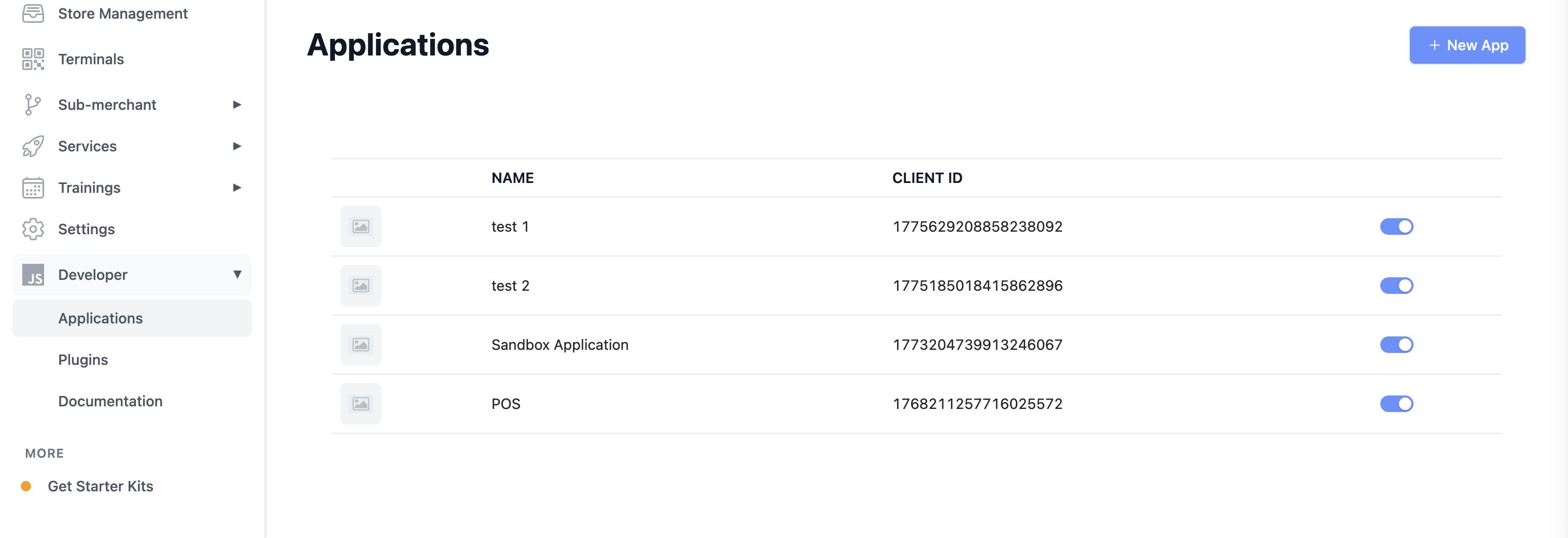
Go to Merchant Portal → Developer → Applications and create a new application:
Step 2 — Obtain Credentials
▾
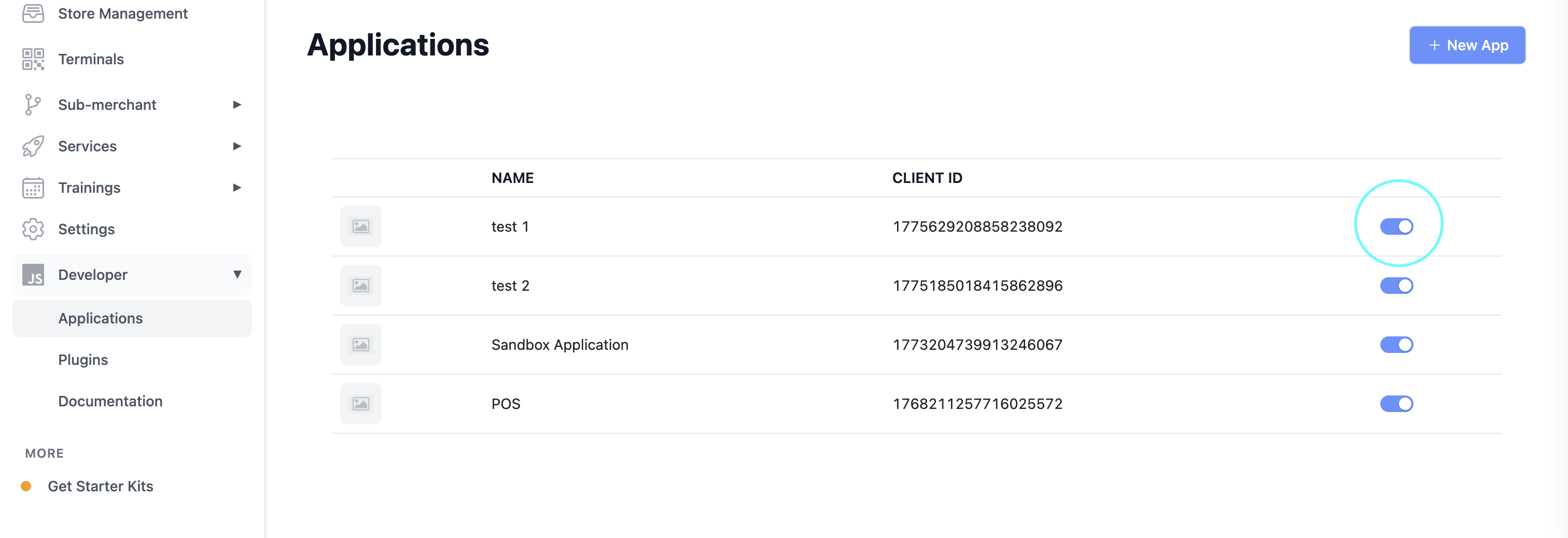
Click on the application you created. You can edit and update relevant information here. To disable the application, toggle the ON/OFF switch at the top right:
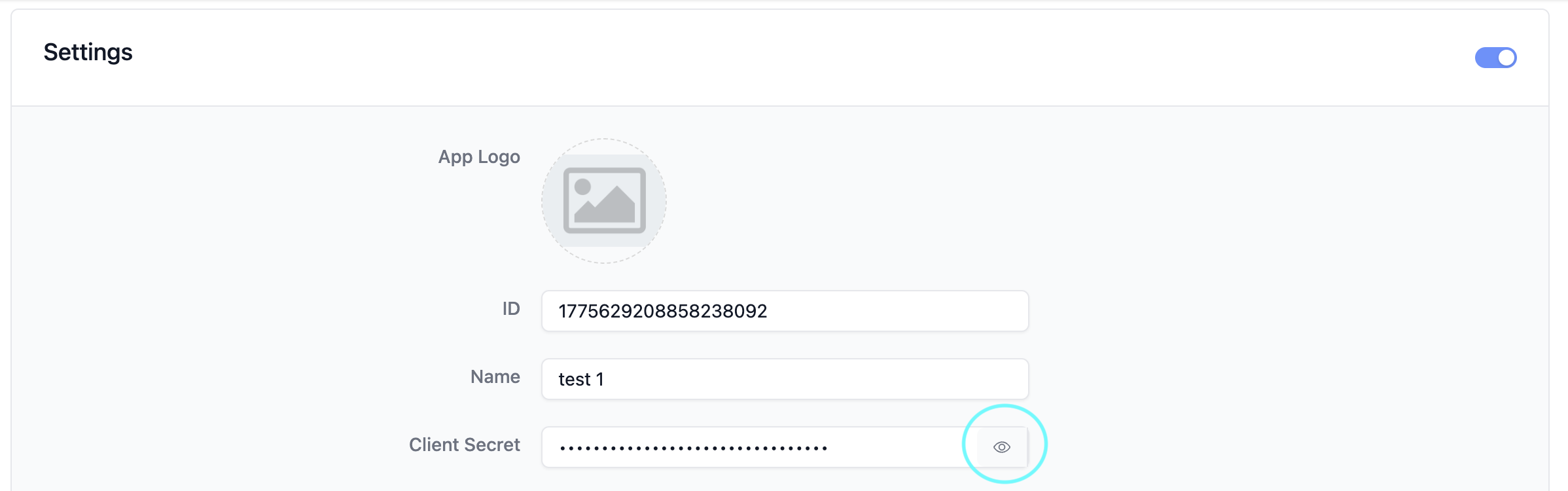
Click the eye icon to reveal your clientSecret:
Step 3 — Generate RSA Keys
▾
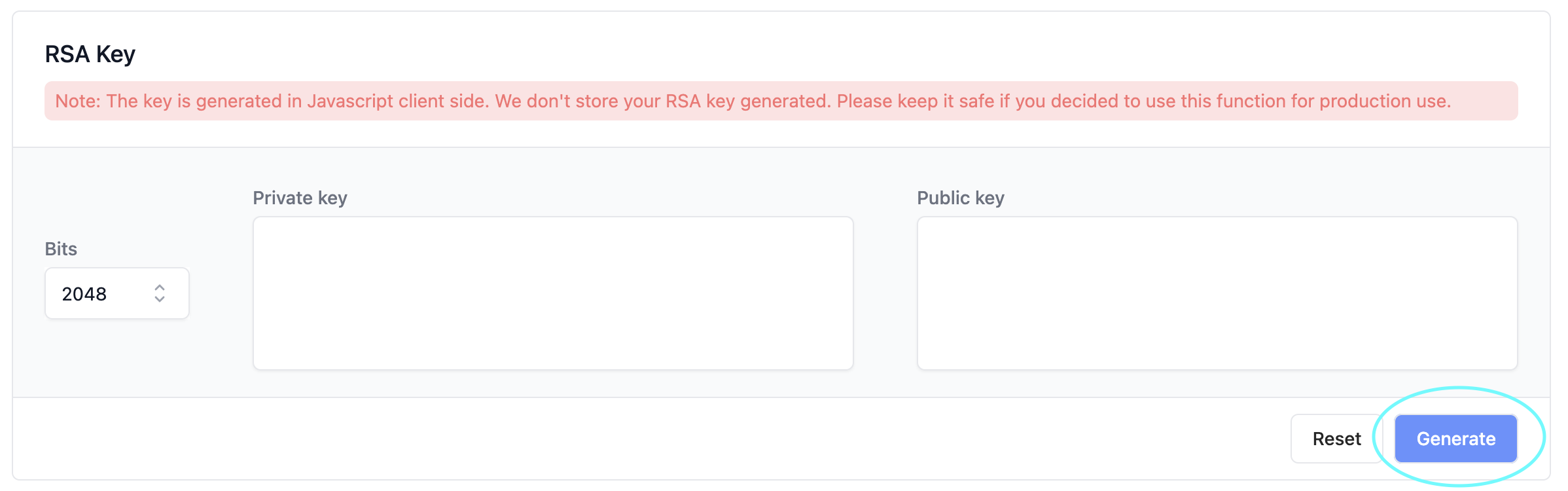
Go to Merchant Portal → Developer → Application → Generate RSA Key. Recommended key size: 2048-bit.
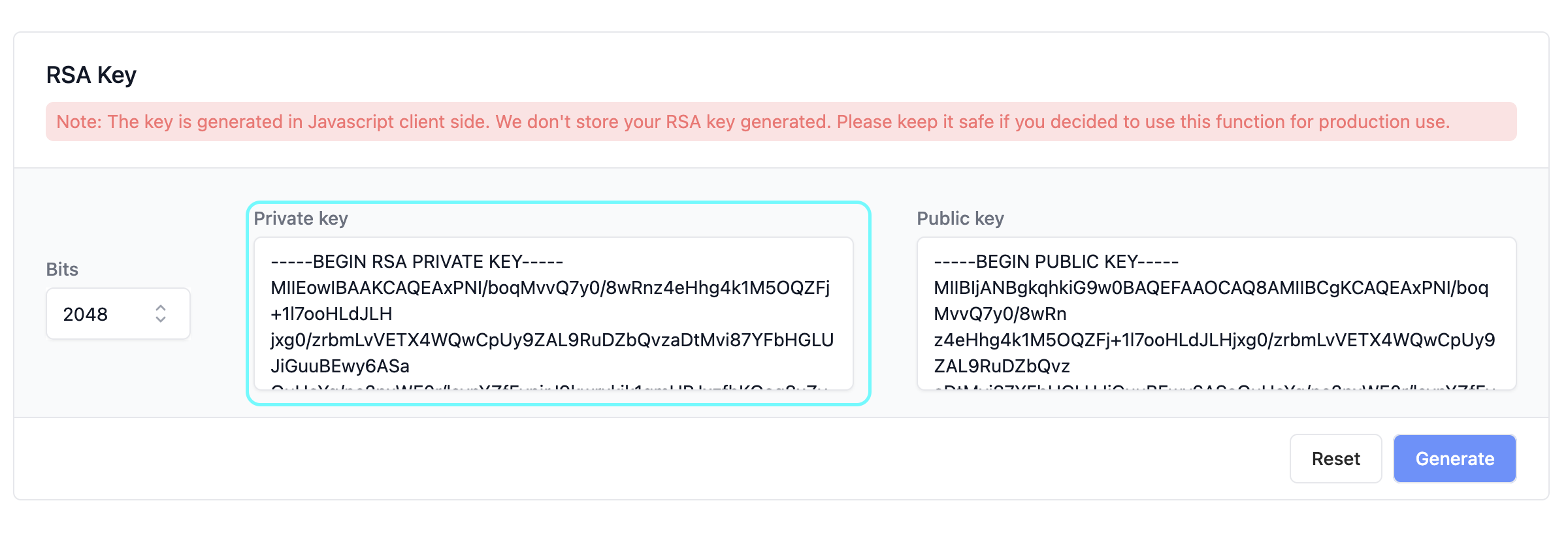
- Private Key — store securely, never expose publicly. Used to sign your API requests.
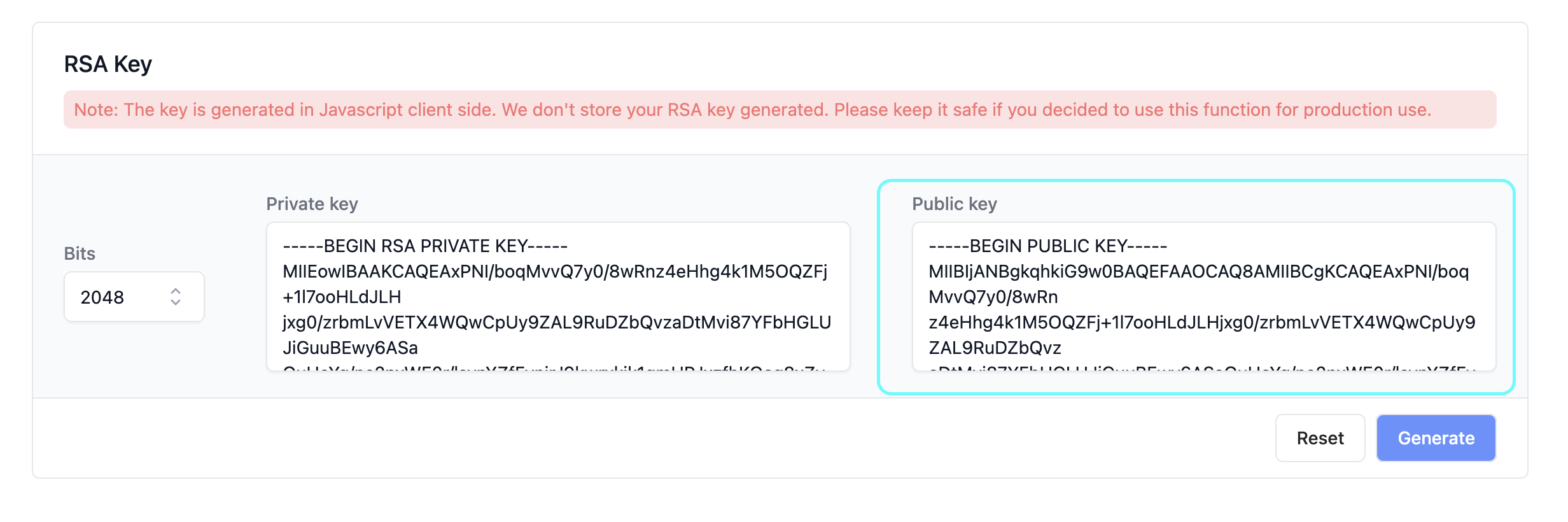
- Public Key — upload to the Merchant Portal so RM can verify your signatures.
Step 4 — Copy Your Keys and Update the Application
▾
Copy the Public Key:
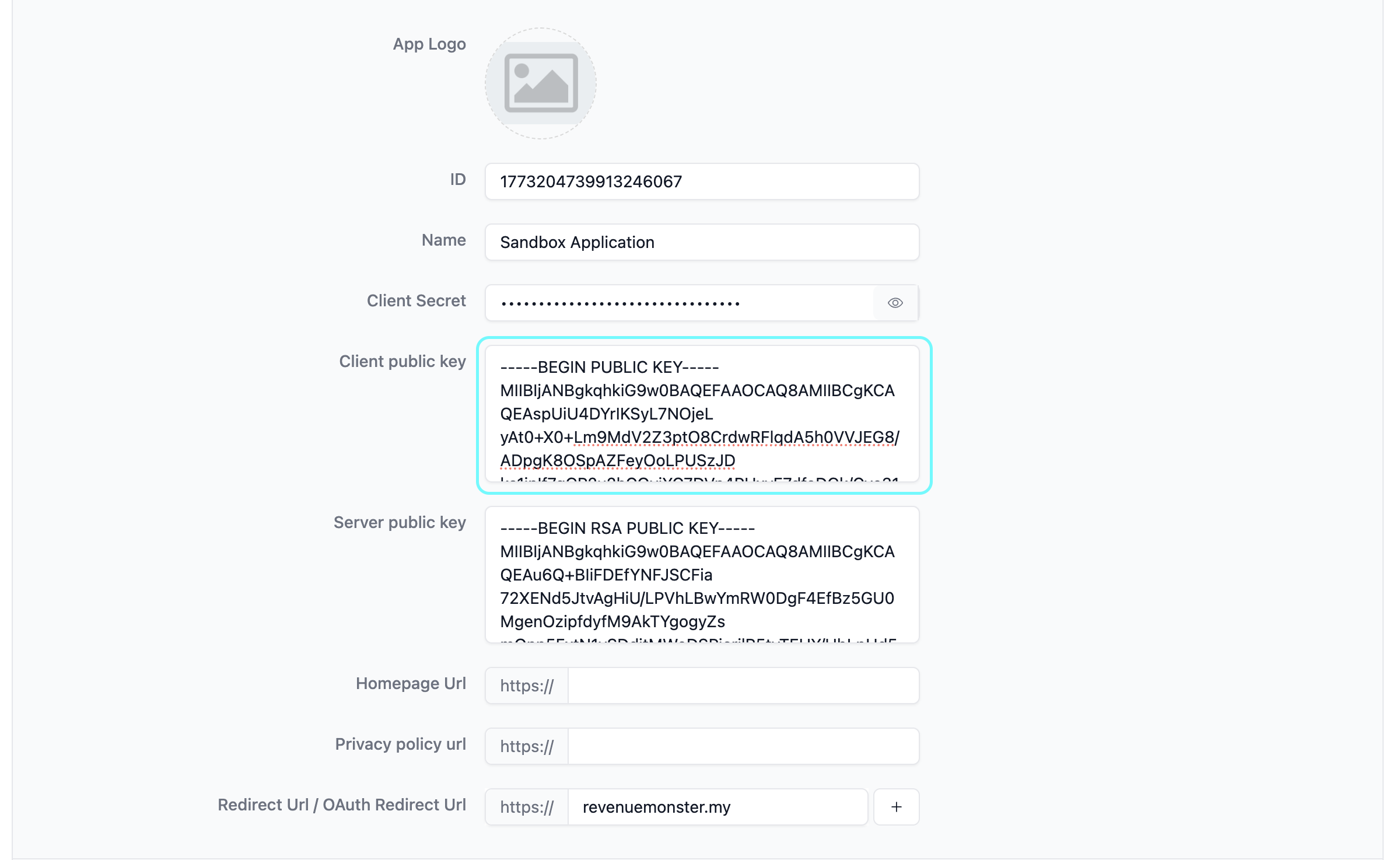
Go back to your application, paste it into the Client public key field, then save:
Copy and save your Private Key somewhere safe before leaving this page. It's generated client-side and never stored by RM — if you lose it, you'll need to generate a new key pair.
Step 5 — Wrap Your Public Key (For Signature Debugger)
▾
Your public key needs to be wrapped in standard PEM format before using it with the Signature Debugger:

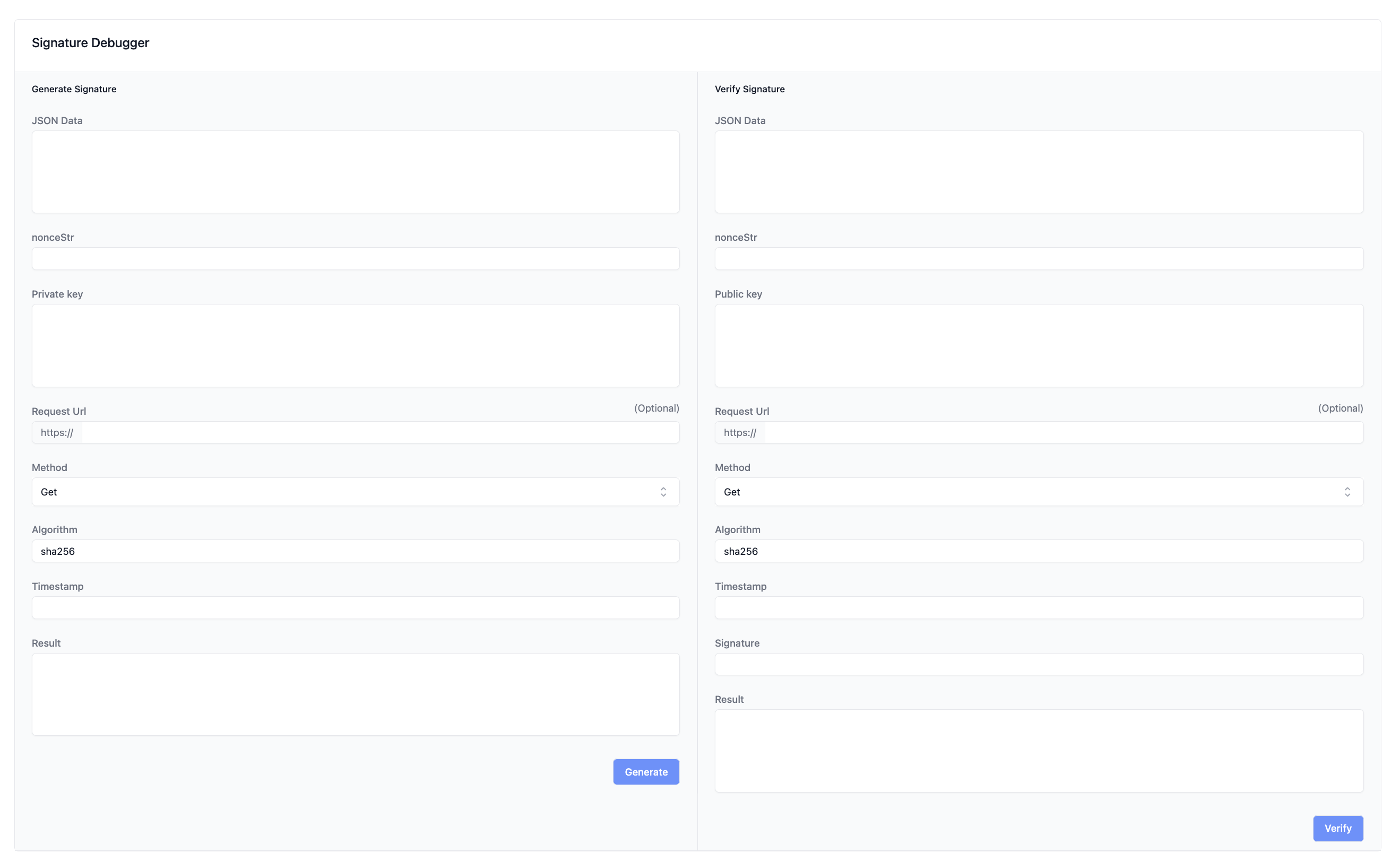
Step 6 — Use the Signature Debugger (Optional)
▾
For security purposes, RM has enhanced its authentication flow by adding layers of encryption to endpoints. You may develop your own encryption tool, or use the Signature Debugger to sign and verify content using your private/public keys: