Direct Checkout — Mode: QR Code
Returns a QR code image for the selected payment method. Display this QR code on screen for the customer to scan with their mobile banking or wallet app.
When to Use
▾
Use this mode when:
- Integrating Maybank QR, CIMB QR, or other bank-specific QR payments
- Displaying QR on a desktop checkout for mobile scanning
Poll Query Payment Checkout every 3-5 seconds to track payment status.
How to Use
▾
/v3/payment/online/checkoutStep 1: Create a Checkout
▾
Call Hosted Payment Checkout to obtain checkoutId.
Step 2: Request the QR Code
▾
POST with type: "QRCODE" and the desired bank method.
Step 3: Display and Poll
▾
Render the returned base64Image and poll Query Payment Checkout for status.
Decode your Image using Base64
▾
Using qrCodeImageBase64 URL to generate a QR Code
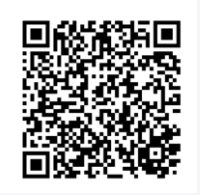
What user will receive
▾
Once user scan the QR Code it will display
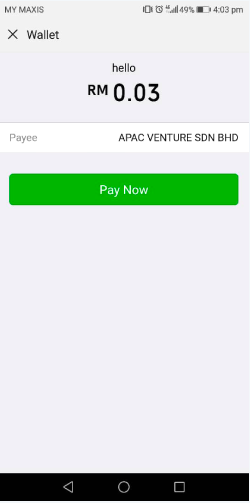
Request Parameters
▾
Checkout ID from the Hosted Payment Checkout response.
Checkout type. Set to "QRCODE".
Payment method (e.g., MAYBANK_MY).
Response Parameters
▾
Response item
Checkout session type.
qrcode details
Base64-encoded QR code image.
QR code data string.
"SUCCESS" if the request succeeded.
Error details
Error code.
Error message.
Debug message (sandbox only).