EasyStore
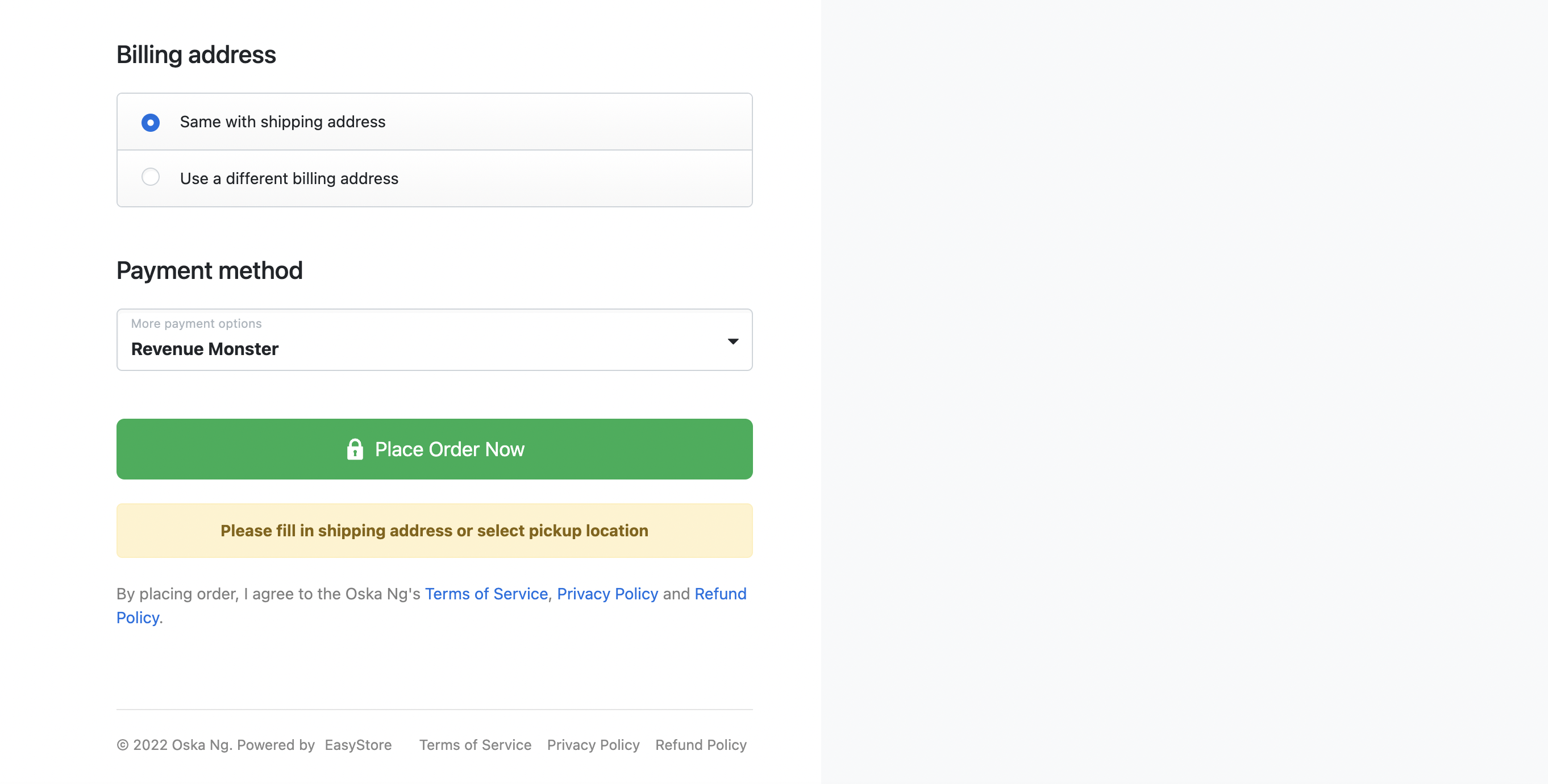
Enable Revenue Monster payment gateway as a checkout option in your EasyStore store.
When to Use
▾
Use this guide when:
- Adding RM as a payment method on EasyStore
- Migrating from another gateway to RM
How to Use
▾
Step 1 : Go to EasyStore Admin Portal
▾
Go to Easystore Admin Portal
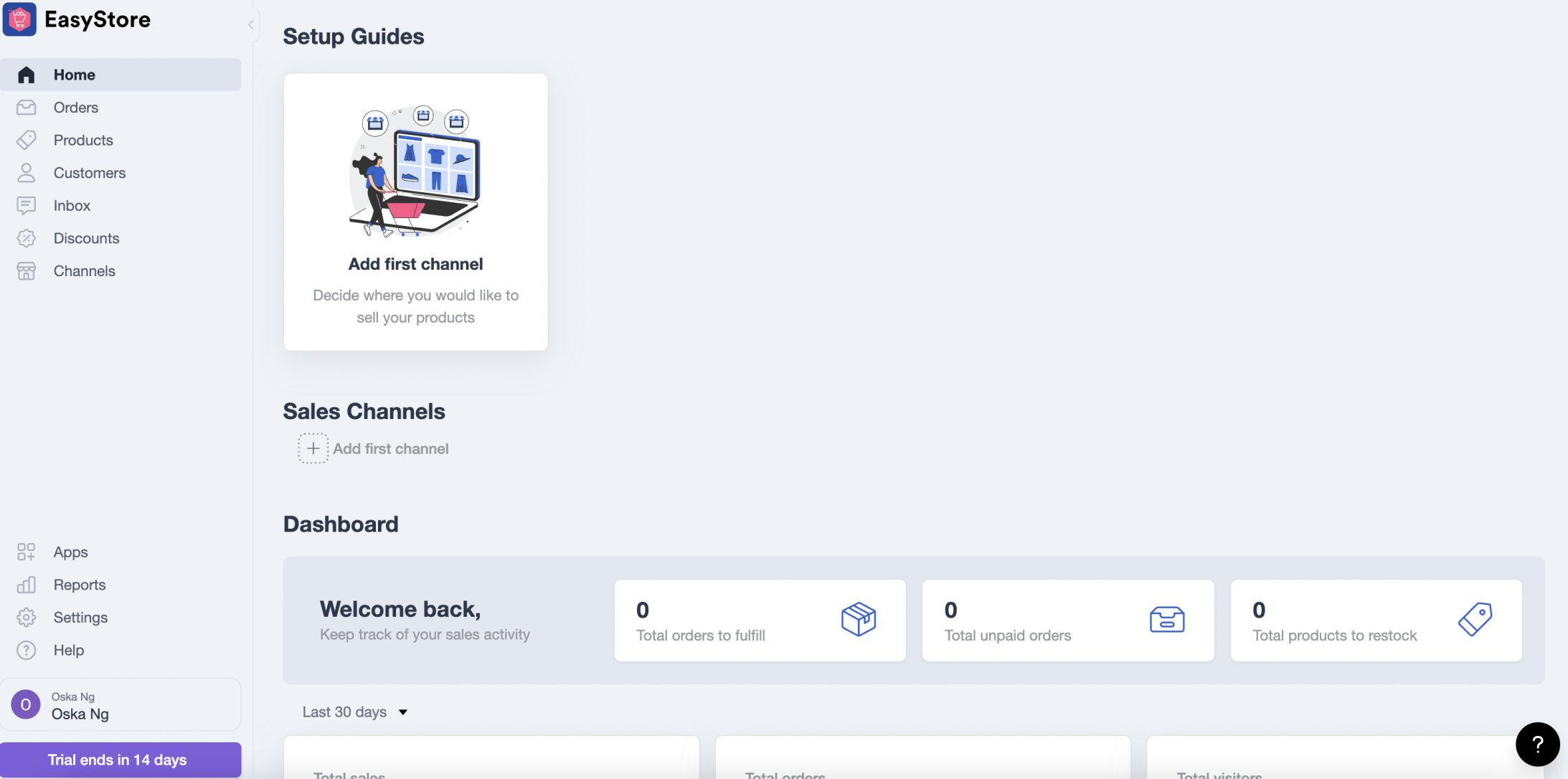
Step 2 : Go to payment setup page
▾
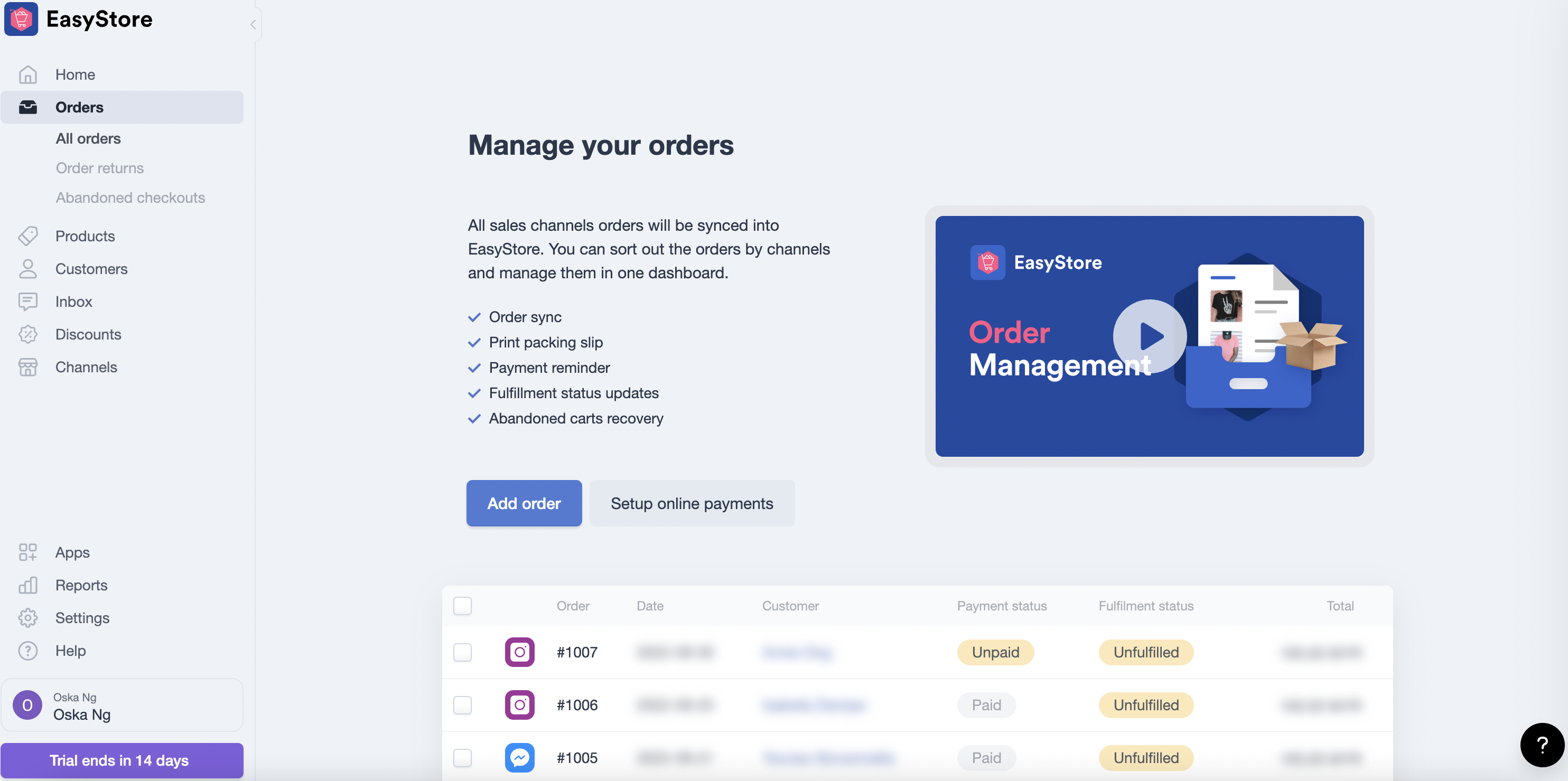
Go to Orders > Setup Online Payments > Add payment method
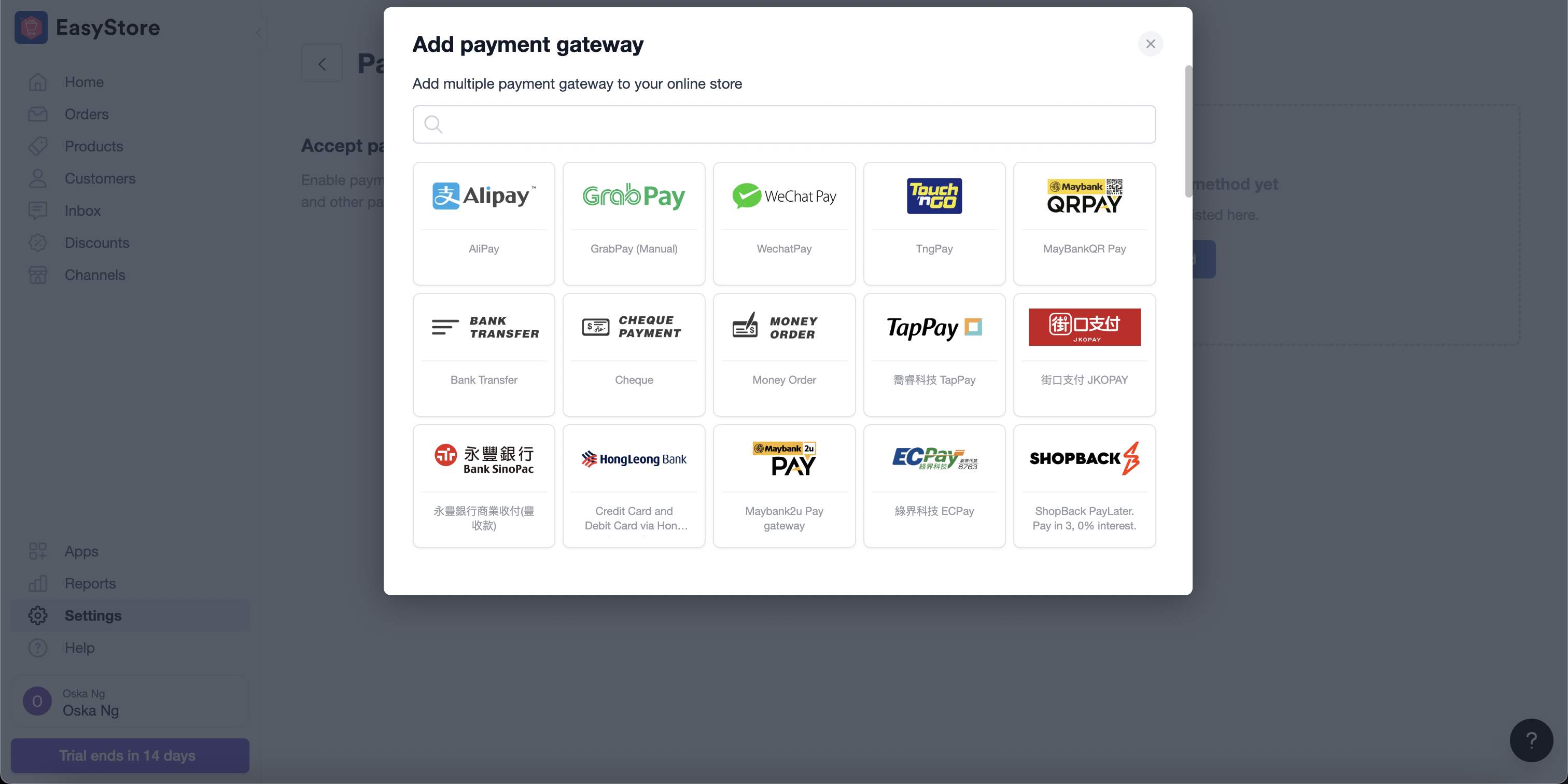
Step 3 : Search for Revenue Monster & Apply It
▾
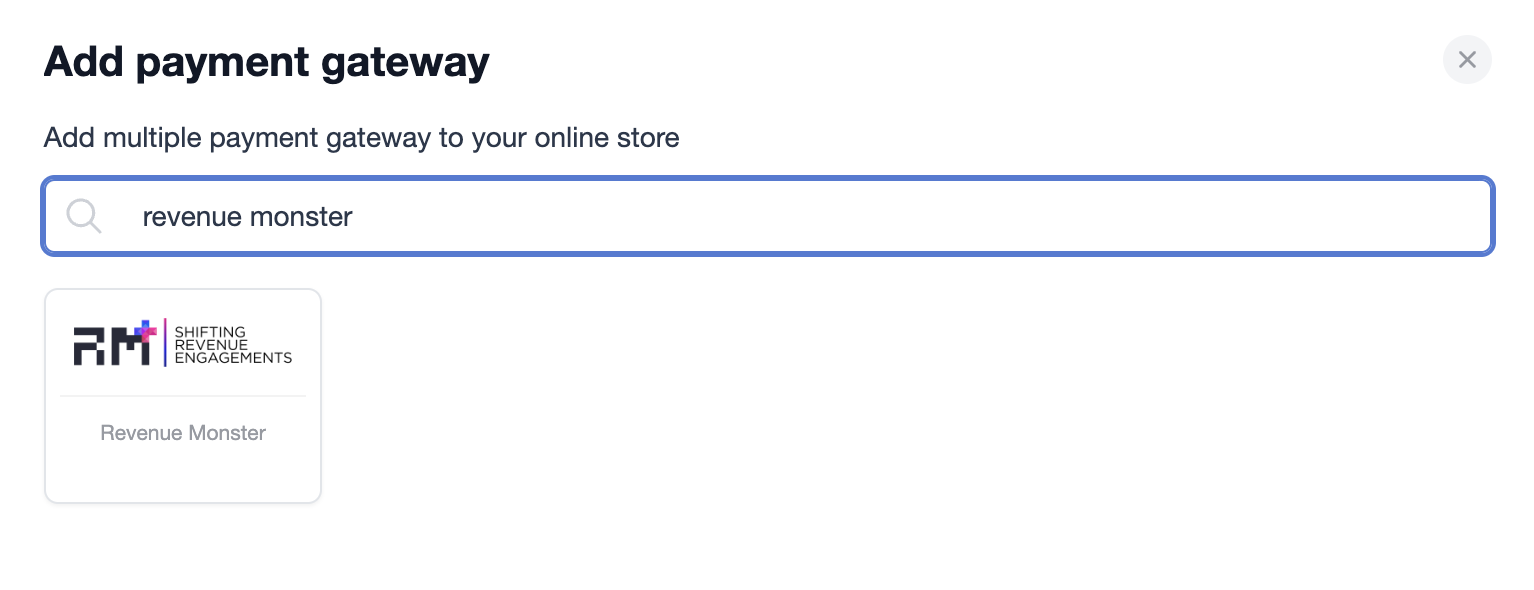
Step 4: Find your Merchant ID & Store ID
▾
- Go to RM Merchant Portal, and login with your merchant account.
- Go to Setting > Merchant
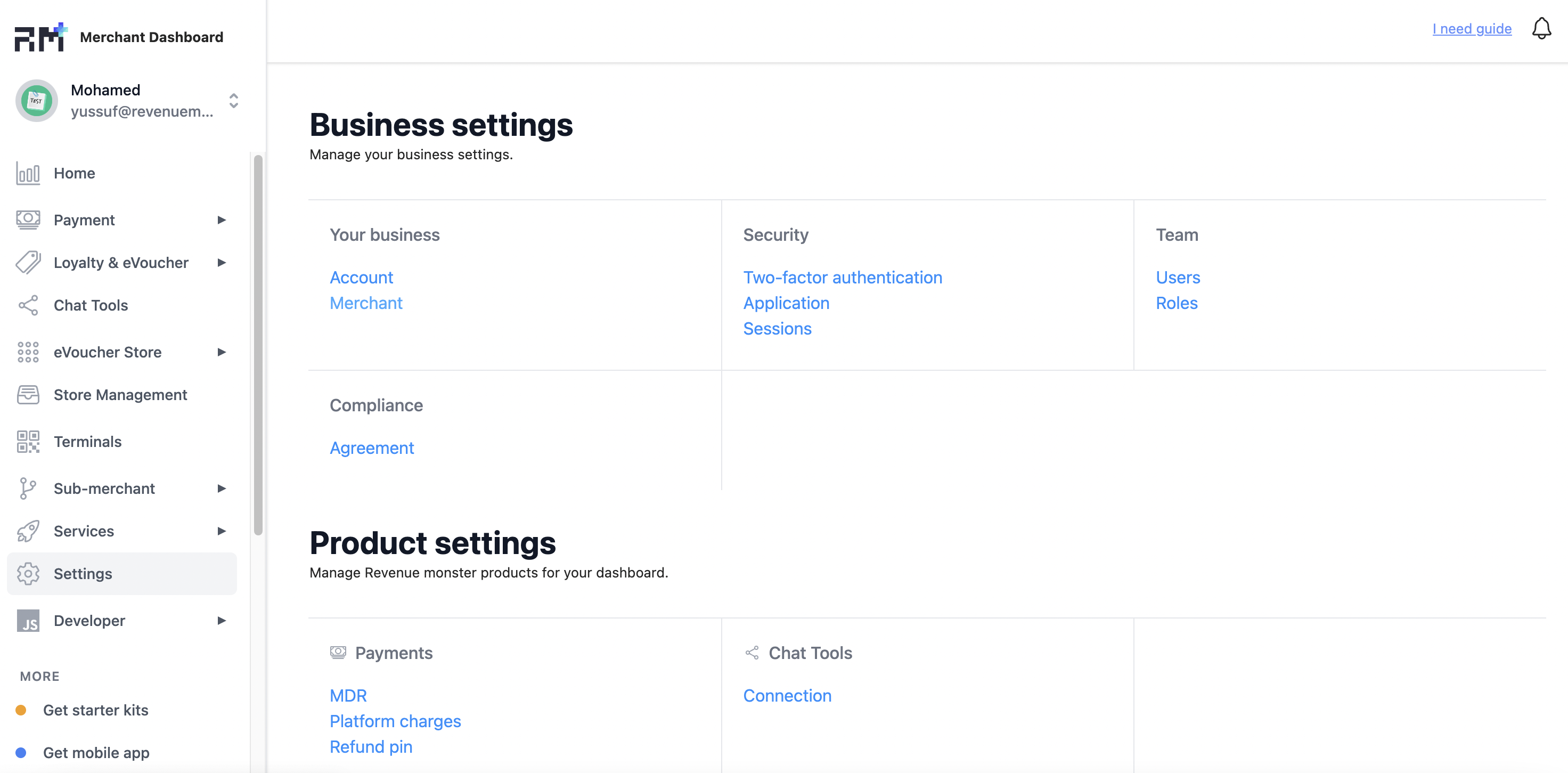
- Now you can see your Merchant ID, example in image was "4118165203679668885"
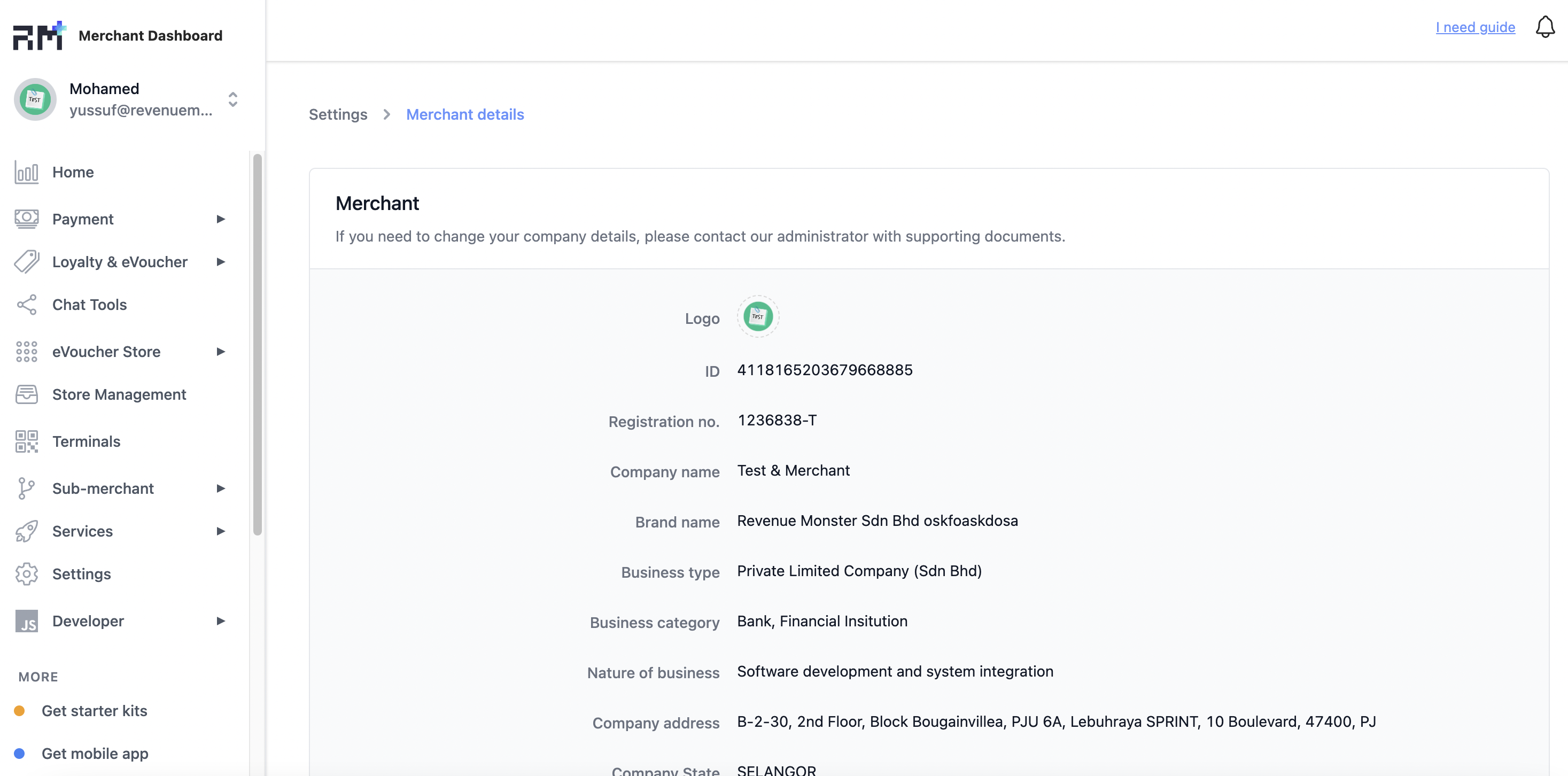
- Now go to Store Management and choose any store id you want to accept payment
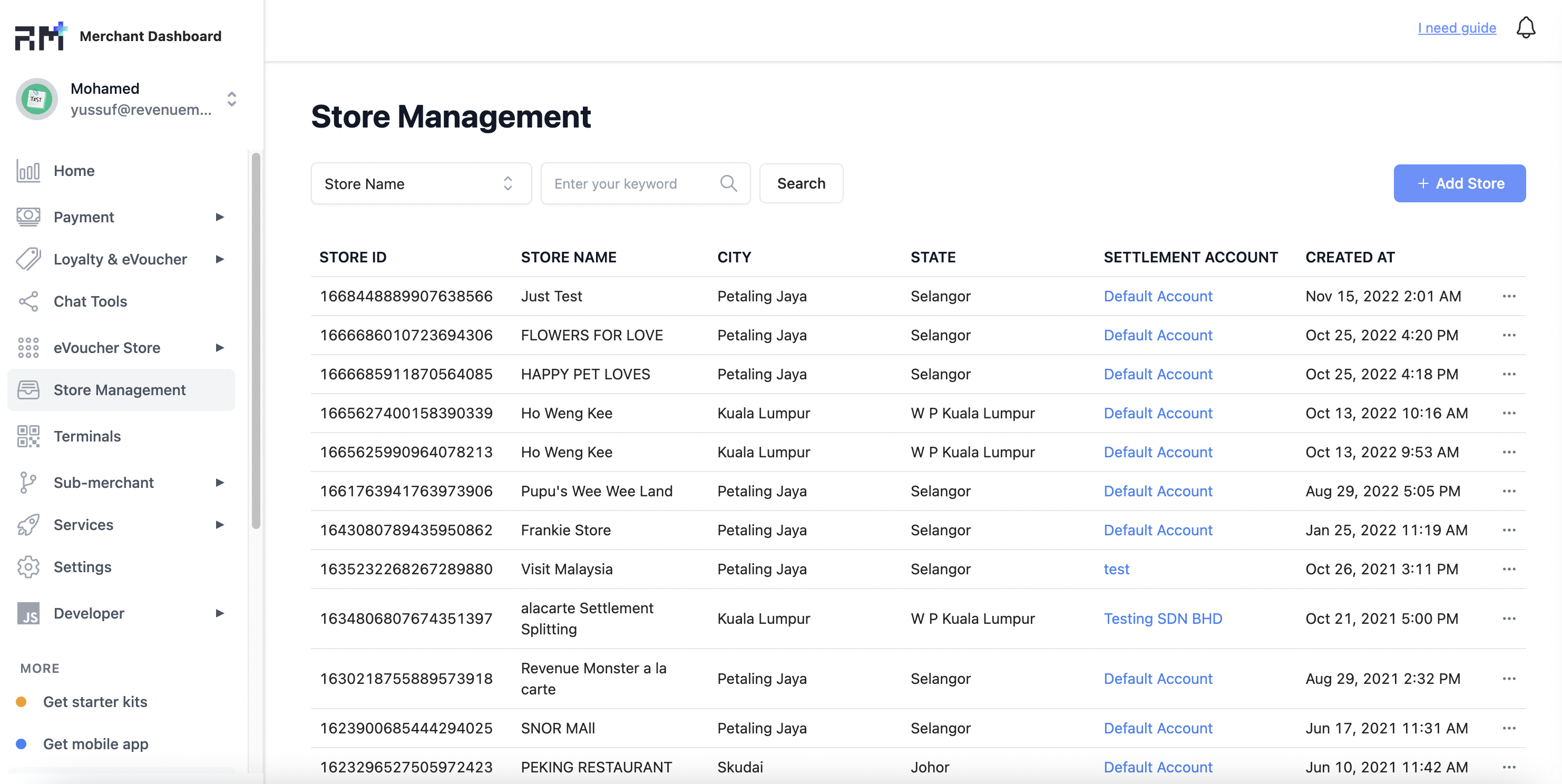
Step 5: Fill in Merchant ID & Store ID
▾
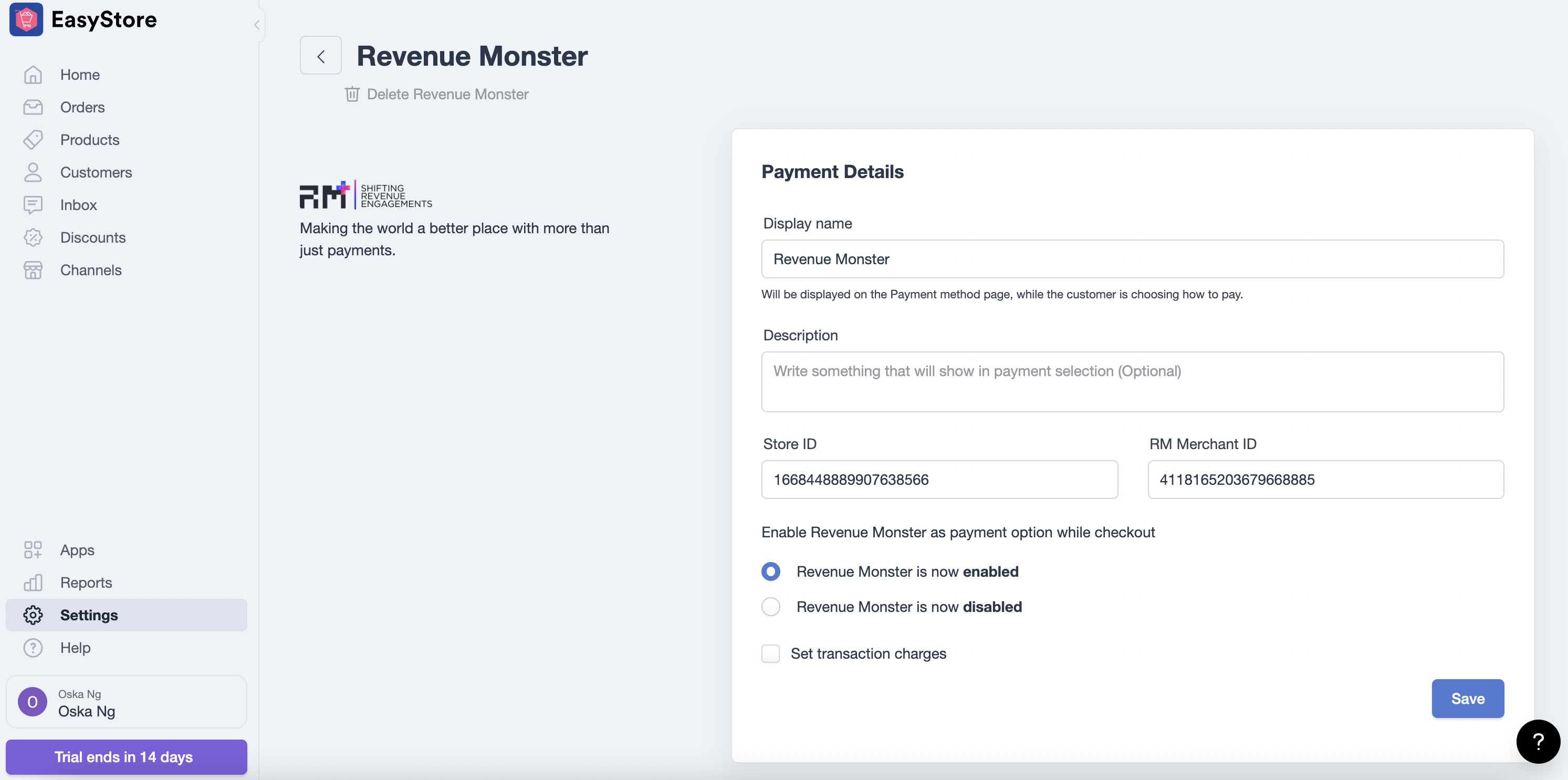
Step 6: Your store now ready to accept payment!
▾